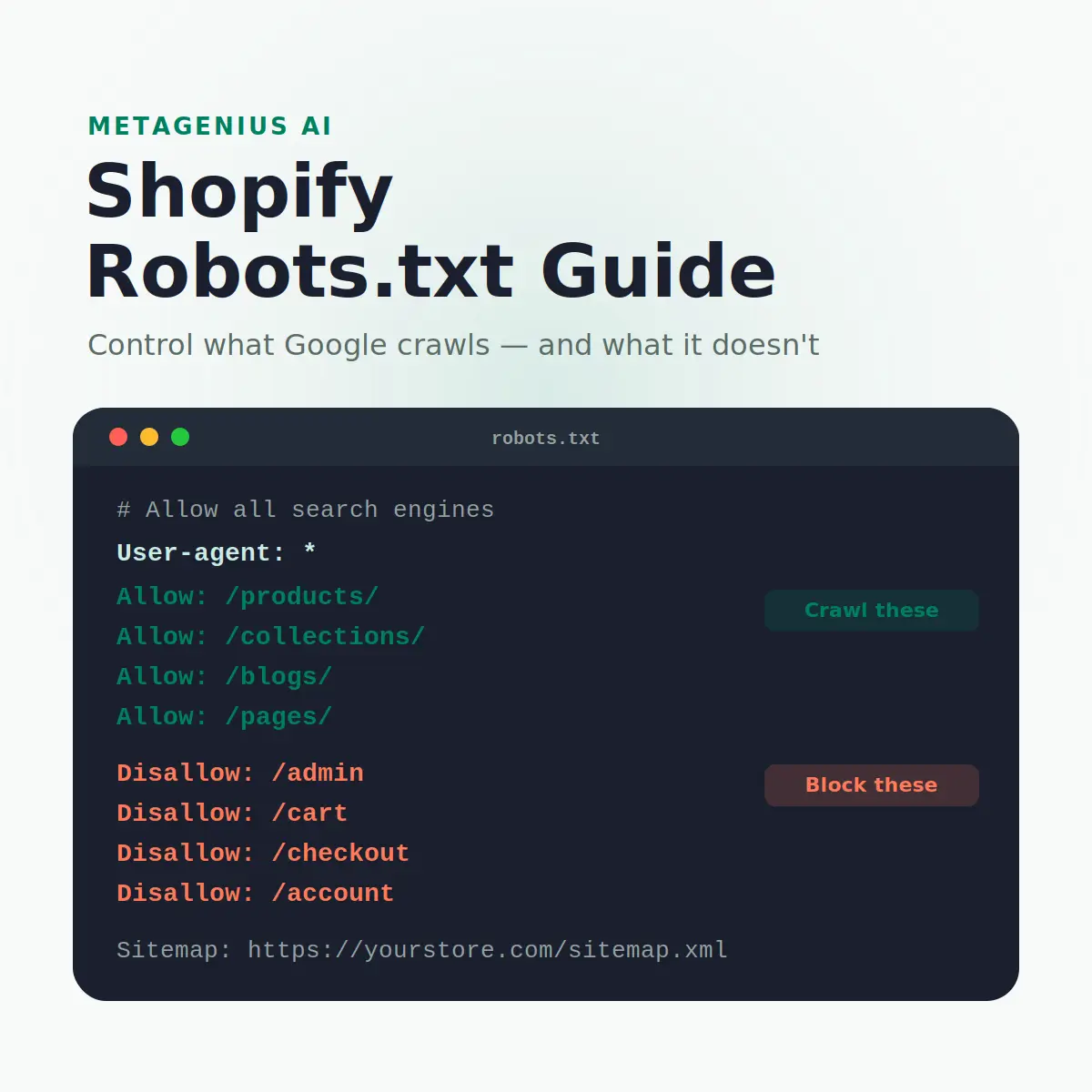
Robots.txt is one of those files that most Shopify merchants never touch — and for good reason. Shopify's default is well-constructed. But understanding what's in it, what you can change, and what you absolutely should not change is worth fifteen minutes of your time. The downside risk of a bad robots.txt edit — accidentally deindexing your entire store — is serious enough to warrant a clear picture of how the file works before you open it.
What Is robots.txt?
Robots.txt is a plain text file at the root of your domain that tells search engine crawlers which pages or paths they should and should not crawl. It's part of the Robots Exclusion Standard — a protocol followed by Google, Bing, and most reputable crawlers.
The key technical distinction: robots.txt controls crawling, not indexing. A page blocked by robots.txt won't be crawled, but Google can still index it if another page links to it. If you want to prevent indexing, you need a noindex meta tag — not a robots.txt disallow rule. John Mueller has confirmed this at Google Search Central more than once, and it's a point that trips up even experienced developers.
The file format is simple. Each block starts with a User-agent line specifying which crawler it applies to (* means all), followed by Allow and Disallow directives for specific paths. Most robots.txt files end with a Sitemap line pointing to the XML sitemap.
Shopify's Default Robots.txt
Your store's robots.txt file lives at https://yourstore.com/robots.txt. Open it in any browser right now — it's public and readable. Shopify's default output looks broadly like this:
User-agent: *
Disallow: /admin
Disallow: /cart
Disallow: /orders
Disallow: /checkouts/
Disallow: /checkout
Disallow: /account
Disallow: /collections/*sort_by*
Disallow: /*/collections/*sort_by*
Disallow: /collections/*+*
Disallow: /collections/*%2B*
Disallow: /collections/*%2b*
Disallow: /*/collections/*+*
Disallow: /*/collections/*%2B*
Disallow: /*/collections/*%2b*
Disallow: /blogs/*+*
Disallow: /blogs/*%2B*
Disallow: /blogs/*%2b*
Disallow: /tools/
Disallow: /search
Allow: /search/predictive

Sitemap: https://yourstore.com/sitemap.xml
This default is good. It blocks functional pages (admin, cart, checkout, account) that have no ranking value and would waste crawl budget, blocks parameter-heavy sorted collection URLs that create near-duplicate pages, and blocks your internal search results. It allows the predictive search endpoint used by theme JS.
For most Shopify stores, the default robots.txt needs no changes at all. Gary Illyes from Google has said that the most common robots.txt mistakes are over-blocking — merchants adding disallow rules that cut off crawlable, rankable content — rather than under-blocking.
What to Allow and What to Block
Always allow (these need to be crawlable)
| Path | Allow or Disallow | Why |
|---|---|---|
/products/ | ✓ Allow | Core ranking pages — must be crawlable |
/collections/ | ✓ Allow | Category pages with commercial keyword value |
/blogs/ | ✓ Allow | Content that drives organic traffic |
/pages/ | ✓ Allow | Static pages (About, FAQ, etc.) |
Homepage / | ✓ Allow (default) | Allowed by default unless you disallow it |
Always block (these waste crawl budget)
| Path | Allow or Disallow | Why |
|---|---|---|
/admin | ✕ Disallow | No ranking value; functional only |
/cart | ✕ Disallow | Session-specific; meaningless to crawlers |
/checkout | ✕ Disallow | Private, session-specific pages |
/account | ✕ Disallow | Login-gated; no public value |
/collections/*sort_by* | ✕ Disallow | Duplicate collection pages with sort parameters |
/search | ✕ Disallow | Internal search results — thin duplicate content |
What to add if you have specific needs
Beyond the default, there are a few cases where you might legitimately add custom rules:
- Block a specific product or collection you don't want indexed: Use a noindex meta tag rather than robots.txt — it's more reliable and doesn't affect crawling of other content on the page.
- Block specific bots (e.g. AI training crawlers): Add a separate
User-agent: GPTBotblock withDisallow: /if you want to opt out of OpenAI's training crawler. This doesn't affect Google. - Block a staging subdomain: Staging is better handled by password-protecting the staging environment, not robots.txt, since the staging domain's robots.txt would need its own separate configuration.
How to Customise Shopify's Robots.txt
Since August 2021, Shopify allows merchants to customise the robots.txt file using a Liquid template. This is done through the theme editor — no app required.
Open your theme code editor
In Shopify admin, go to Online Store → Themes → Actions → Edit code. You're editing a copy of your theme files directly.
Create the robots.txt.liquid template
In the Templates folder, look for robots.txt.liquid. If it doesn't exist, create it by clicking "Add a new template" and selecting robots.txt from the dropdown. Shopify will prepopulate it with the default rules.
Edit carefully
The default content uses Liquid tags that output Shopify's built-in rules. You can add custom directives before or after these output blocks. Be conservative — add disallow rules only for paths you have a specific reason to block.
Verify the output
After saving, visit yourstore.com/robots.txt directly in a browser and confirm the output looks correct. Then check Google Search Console under Settings → Robots.txt tester to verify Google can read it and that no important paths are accidentally blocked.
One important note: editing robots.txt.liquid replaces Shopify's default output for that file. If you create the template and leave it blank, your store will have an empty robots.txt — blocking nothing, but also providing no Disallow rules for cart and admin. Always start from Shopify's default content and add to it rather than replacing it entirely.
Technical SEO sorted. Now make every crawlable page count.
MetaGenius AI bulk-generates SEO image alt text, meta titles, and descriptions for every product and collection — the on-page signals that determine whether crawled pages actually rank. Free plan, no credit card.
Install MetaGenius AI Free →Common Robots.txt Mistakes on Shopify
These mistakes range from minor to catastrophic. For a broader technical SEO picture, our Shopify SEO checklist covers robots.txt alongside the other technical foundations worth auditing regularly.
Disallowing everything with Disallow: /
This is the most catastrophic error — it blocks all crawlers from your entire site. Google will process it and stop crawling your store within days. Traffic typically drops 60–80% over 2–4 weeks as pages fall out of the index. It happens most often when merchants copy a robots.txt "template" from an unrelated platform or accidentally edit the wrong line. If you see a ranking crash after any theme or robots.txt change, check yourstore.com/robots.txt immediately.
Blocking CSS and JS files
Blocking Disallow: *.css or Disallow: *.js was common advice in the early 2010s to speed up crawls. Google now explicitly recommends allowing these files — Googlebot renders pages using the CSS and JS to evaluate page quality. Blocking them degrades Google's ability to understand your pages and can suppress rankings. Shopify's default correctly allows all CSS and JS.
Using robots.txt to hide sensitive content
Robots.txt is a public file — anyone can read it. If you disallow a path, you're telling every crawler (including malicious ones) exactly what's there. For genuinely sensitive paths, use server-level access controls. Robots.txt is not a security layer.
Blocking Googlebot specifically while allowing others
Setting User-agent: Googlebot with aggressive disallow rules while leaving User-agent: * permissive creates an asymmetry that Google's spam policies flag as cloaking — showing different content to Google versus users. Only do this if you have a very specific, legitimate reason and you understand the risk.
Frequently Asked Questions
yourstore.com/robots.txt. It includes sensible defaults: blocking admin, cart, checkout, account, sorted collection parameters, and internal search — while allowing products, collections, blogs, and pages. Since August 2021, merchants can customise this file using a Liquid template in the theme code editor.robots.txt.liquid template in the theme code editor (Online Store → Themes → Actions → Edit code → Templates). Create the template, start from Shopify's default content, and add or modify rules carefully. Always verify the output at yourstore.com/robots.txt after saving.Disallow: / under User-agent: * blocks all crawlers from your entire store. Google processes this within days, stops crawling your site, and pages begin falling out of the index over 2–4 weeks. Traffic can drop 60–80%. If you see a sudden ranking crash after any robots.txt edit, check your robots.txt file immediately and remove the blocking rule./search?q=...) are thin, duplicate-like content that waste crawl budget without providing ranking value. Shopify's default robots.txt already includes Disallow: /search. Leave this rule in place if you customise your robots.txt. The exception is the predictive search endpoint (/search/predictive), which Shopify correctly allows since it's used by theme JavaScript.yourstore.com/robots.txt directly and read through the disallow rules to confirm no important paths are blocked. Second, use Google Search Console under Settings → Robots.txt — this shows the file as Google sees it and lets you test specific URLs against the rules. If you see a ranking drop after any theme change, always check your robots.txt first.Technical SEO protects your crawl. On-page SEO wins your ranking.
MetaGenius AI bulk-generates image alt text, meta titles, and descriptions for every product, collection, and page in your Shopify store — in seconds, in 15+ languages, with a live Google SERP preview before you publish.
Install Free on the Shopify App Store →