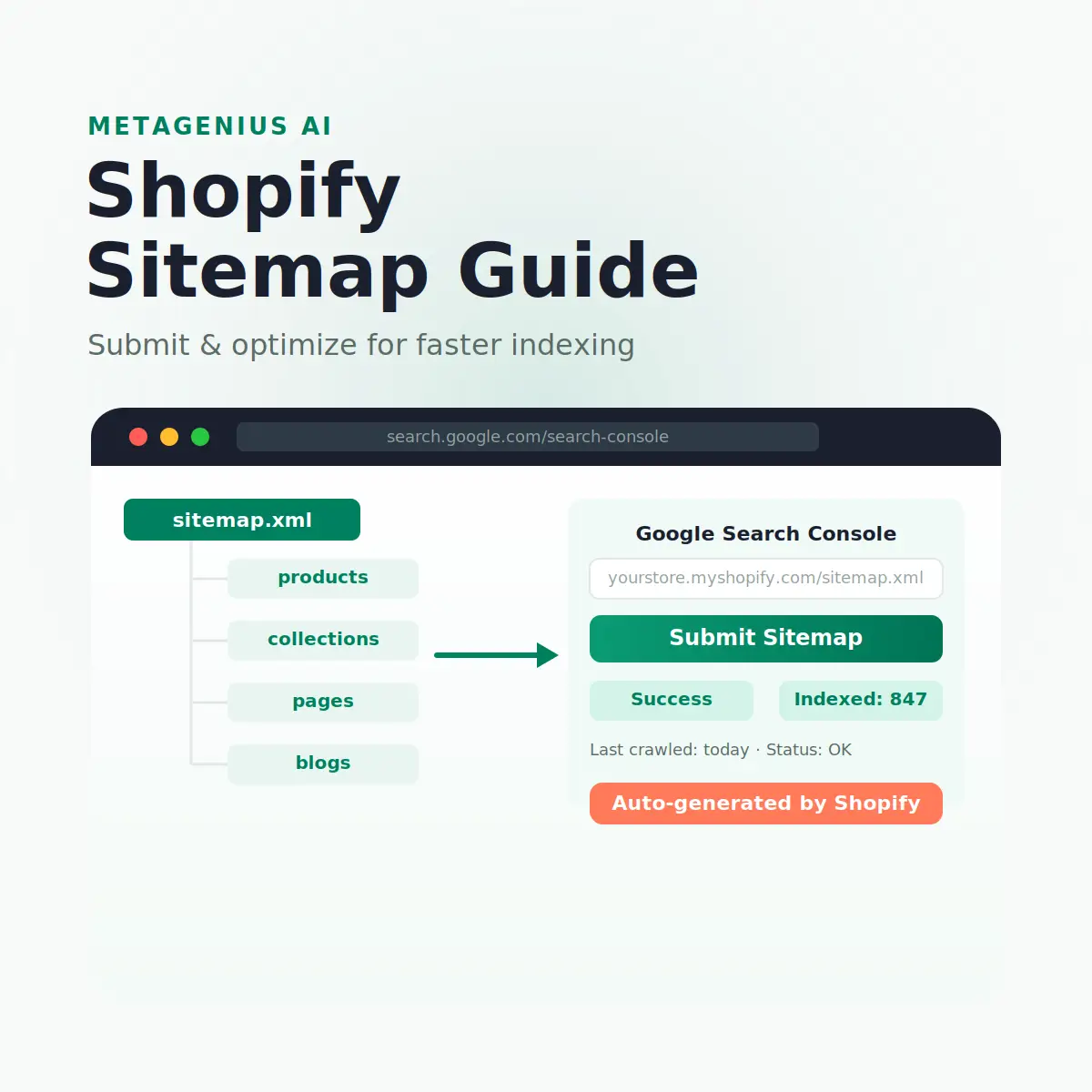
Shopify builds your sitemap automatically. It updates itself whenever you publish a product, add a collection, or post a blog. There's nothing to install, configure, or maintain. You get a clean, well-structured XML file at yourstore.com/sitemap.xml from day one.
The problem is that Google doesn't know it's there unless you tell it. Submitting your Shopify sitemap to Google Search Console takes less than two minutes and directly shortens the time between you publishing a product and Google discovering it. This guide covers exactly how to do it, what the sitemap includes, what it leaves out, and the critical distinction between a page being indexed and a page being optimized — because getting those two confused is where most merchants lose weeks of potential rankings.
What Is a Shopify Sitemap?
A sitemap is an XML file that lists every page on your store you want search engines to find and index. Think of it as a table of contents you hand directly to Google — instead of waiting for Googlebot to discover pages by following links, you give it a complete list up front.
Your Shopify sitemap lives at a fixed URL: https://yourstore.com/sitemap.xml. Shopify generates it using the Liquid templating system and updates it automatically. You never touch a file or write any XML. The sitemap itself is actually an index of four sub-sitemaps, each covering a different content type.
Google's John Mueller has confirmed that submitting a sitemap is one of the fastest ways to accelerate initial indexing of a new store or newly published pages — particularly useful when a store doesn't yet have many external links pointing to it, because those links are the other main way Googlebot discovers pages.
What the Shopify Sitemap Covers (and What It Misses)
What's included automatically
Shopify's sitemap index at /sitemap.xml points to four sub-sitemaps:
/sitemap_products_1.xml— all published products with their canonical URLs/sitemap_collections_1.xml— all published collections/sitemap_pages_1.xml— standalone pages (About, Contact, FAQ, etc.)/sitemap_blogs_1.xml— blog posts across all blogs
Each sub-sitemap includes the page URL and its last-modified date (lastmod), which signals Google when content was last changed and helps prioritize recrawling.
What's excluded
This is the counterintuitive part that catches merchants out. The sitemap only lists pages that are:
- Published (not draft, not archived)
- Not blocked by a noindex tag
- Not password-protected at the store level
Notably, the sitemap does not include variant pages, search result pages, or customer account pages — these are either intentionally excluded or canonicalized. Shopify also doesn't add your homepage to the sitemap by default because Google can usually find it through other means, but you can verify it's indexed separately via the site: operator in Google.
How to Submit Your Shopify Sitemap to Google Search Console
This takes under two minutes. Here's the exact process:
Open Google Search Console
Go to search.google.com/search-console. If you haven't verified your Shopify store yet, do that first — the easiest method is adding a DNS TXT record through your domain registrar, or using the HTML tag method via Shopify's theme editor.
Select your property
Make sure you're in the correct property for your store's domain. If you have both https:// and http:// versions, work in the HTTPS property — that's where your canonical pages live.
Navigate to Sitemaps
In the left sidebar, click Indexing → Sitemaps. You'll see a field to enter a new sitemap URL and a history of any previously submitted sitemaps.
Enter your sitemap URL
Type sitemap.xml in the field (GSC prefills your domain). The full URL will be https://yourstore.com/sitemap.xml. Click Submit.
Confirm success
GSC will show a status of Success within a few seconds. You'll also see the number of URLs discovered from the sitemap. If you see an error instead, jump to the troubleshooting section below.
Monitor indexing over time
Return to the Sitemaps report over the following days. Watch the "Discovered" count grow and check the Coverage report for any pages marked "Excluded" — those are pages Google found but chose not to index, often for quality or duplication reasons.
You only need to submit the main /sitemap.xml — Shopify's index file automatically points Google to all four sub-sitemaps. You don't need to submit each one individually.
What Happens After You Submit
Submitting the sitemap doesn't force Google to index every page immediately — it signals Googlebot to add your pages to its crawl queue. Crawling typically begins within hours to a few days. Full indexing of a new store's catalog can take one to four weeks, depending on your domain's crawl budget and authority.
Crawl budget and why it matters for large catalogs
Crawl budget is Google's term for the number of pages it's willing to crawl on your site within a given period. For a 50-product store, this is rarely a concern. For a 5,000-SKU dropshipping store, it's critical. Google prioritizes crawling pages it believes are high-quality — which means thin, duplicate, or parameter-heavy pages eat into your crawl budget without delivering rankings.
Gary Illyes from Google has stated that sites with a lot of duplicate or low-quality content often find their crawl budget consumed by those pages instead of the important ones. For dropshipping stores using AliExpress or supplier descriptions verbatim, this is a real problem: your product pages compete with thousands of identical copies for crawl priority. The fix isn't more sitemap optimization — it's making your product pages genuinely distinct.
The difference between indexed and ranking
Getting indexed means Google has crawled and stored your page. Ranking means Google is actively showing it in search results for relevant queries. These are completely separate outcomes. A page can be indexed and sit at position 94, invisible to anyone searching.
What determines ranking — after indexing — comes down to on-page relevance signals: meta title, meta description, heading structure, image alt text, and content quality. Submitting your sitemap is the prerequisite, not the result. If your indexed pages aren't ranking, the next layer to fix is their on-page SEO. See our complete guide to Shopify SEO in 2026 for the full picture.
Optimizing Beyond the Sitemap
Once your sitemap is submitted and pages are indexing, the real SEO work begins. A sitemap tells Google what pages exist. Your meta tags tell Google what those pages are about and influence whether searchers click them.
Meta titles and descriptions
Every product, collection, and page in your sitemap needs a unique meta title (under 60 characters) and meta description (under 155 characters) written for both search engines and the humans scanning results. Shopify's defaults pull from your product title and the first line of your description — rarely optimized for clicks or keyword intent.
For stores with more than 30–40 products, writing these manually is a significant time cost. On a 300-product store at 10 minutes per product, that's 50 hours of work. MetaGenius AI handles this in bulk: AI-generated meta titles and descriptions for every product, collection, blog, and page, with a live Google SERP preview before you publish — the whole catalog in minutes.
Image alt text
Your sitemap submission also means Google will crawl your product images. Without alt text, those images are invisible to Google Image Search — which processes over 20 billion queries monthly. Alt text is the most overlooked SEO fix for Shopify stores: it improves image search ranking, accessibility compliance under WCAG 2.2, and gives Google additional relevance signals for your product pages.
Sitemap submitted. Now make every page worth indexing.
MetaGenius AI bulk-generates SEO image alt text and meta tags for your entire Shopify catalog — in seconds, with a live Google preview before anything goes live. Free plan, no credit card needed.
Install MetaGenius AI Free →Fixing noindex pages leaking from your sitemap
One error to watch for: pages listed in your sitemap but tagged with a noindex directive. Google flags these as contradictions — you're saying "here's a page" in the sitemap but "don't index it" in the page headers. This is usually a leftover from development mode or a misconfigured theme setting. Check your GSC Coverage report for the "Submitted URL marked noindex" warning and resolve it before it drains your crawl budget.
Troubleshooting Shopify Sitemap Errors
"Couldn't fetch" error in GSC
This means Google couldn't access your /sitemap.xml URL. Most common causes: your store is still password-protected (Shopify's default for new stores), or a custom robots.txt is blocking Googlebot. Check both. Password protection is the most common culprit for new stores whose owners forget to disable it after launch.
Pages discovered but not indexed
GSC shows them in "Discovered — currently not indexed." This usually means Google found the pages but chose not to index them — typically because of thin content, duplication, or low perceived quality. The solution is improving the page content, not resubmitting the sitemap. Per the March 2024 Helpful Content System update, pages that appear auto-generated or that closely mirror other content on the web are deprioritized. Making each product page genuinely distinct is the fix.
"Sitemap could not be read" error
Rare on Shopify because the platform generates the XML file, but can happen if your store URL has a non-standard character or if you've installed a conflicting app that modifies the sitemap output. Try accessing yourstore.com/sitemap.xml directly in a browser — if it loads, the issue is on Google's end and usually resolves on its own. If it doesn't load, contact Shopify Support.
Missing products or collections
If products aren't appearing in the sitemap, check they're published (not draft), that their availability includes your online store sales channel, and that they don't have a noindex meta tag added by an SEO app. Collections with no products are also excluded from the sitemap automatically by Shopify.
Frequently Asked Questions
https://yourstore.com/sitemap.xml. Shopify keeps it updated whenever you publish or update content. You don't need to create or install anything — just submit that URL to Google Search Console.sitemap.xml — the main sitemap index. Shopify's index file automatically references all four sub-sitemaps (products, collections, pages, blogs), so Google discovers all of them through a single submission. You don't need to submit each sub-sitemap separately, though doing so doesn't cause any harm.Sitemap submitted. Now make every page earn its index.
MetaGenius AI bulk-generates image alt text and meta tags across your entire Shopify catalog — the on-page signals that determine whether indexed pages actually rank. Start free, see results in days, not months.
Install Free on the Shopify App Store →