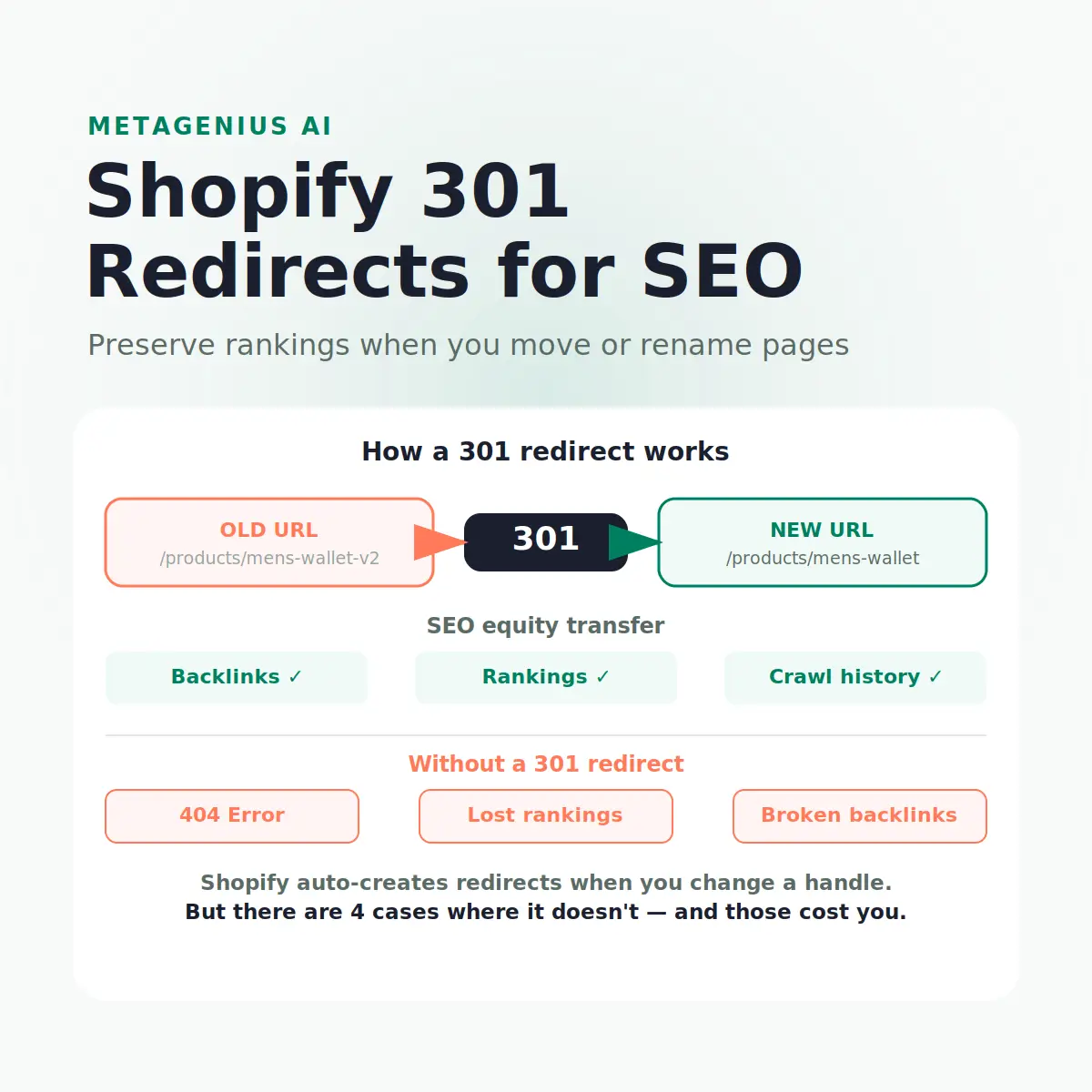
Changing a URL on your Shopify store without a redirect is the SEO equivalent of moving your shop to a new address and not telling anyone. Every backlink that pointed to the old URL goes nowhere. Every ranking signal that page accumulated — crawl history, click data, link equity — vanishes. Google's crawlers find a 404, log it, and eventually deindex the old page entirely.
A Shopify 301 redirect solves this. It permanently forwards visitors and search engines from the old URL to the new one, preserving the ranking equity the original page earned. This guide covers how redirects work on Shopify, where the platform handles them for you, and the four scenarios where you need to do it yourself — before they cost you traffic.
What Is a 301 Redirect?
HTTP 301 is the "Moved Permanently" status code. When Google crawls a URL that returns 301, it follows the redirect to the destination, notes the permanent move, and transfers the original page's authority to the new URL. The old URL is eventually deindexed; the new URL inherits its ranking signals.
This is different from a 302 redirect (temporary move), which tells Google to keep the original URL in its index and not transfer equity. Using a 302 when you mean "this is permanent" is a surprisingly common Shopify mistake — particularly when apps or developers set up redirects without specifying the redirect type.
How much equity does a 301 pass?
Google's Gary Illyes confirmed in 2016 that 301 redirects pass "close to full PageRank." More recent statements from the Google Search Central team suggest the actual transfer is in the 90–99% range, with a small loss at each hop in a redirect chain. For practical purposes: a 301 from a well-linked page preserves almost all ranking value. A 404 preserves none.
The counterintuitive part: Google doesn't immediately register and act on a 301. The transfer of equity happens gradually as Googlebot recrawls the old URL, follows the redirect, and updates its index. This process typically takes two to eight weeks depending on how frequently your store is crawled. You won't see instant ranking recovery even after setting up a correct redirect.
How Shopify Handles 301 Redirects Automatically
Shopify's platform automatically creates a 301 redirect in two specific scenarios:
- When you change a product handle. If you edit the URL slug in a product's "Search engine listing" section, Shopify creates a 301 from the old handle to the new one automatically, immediately on save.
- When you change a collection handle. Same behaviour — edit the collection URL, Shopify auto-generates the redirect.
This is one of Shopify's genuinely strong SEO features. Most e-commerce platforms require manual redirect setup; Shopify bakes it into the product/collection editing flow. The redirect is stored in your store's URL Redirects list under Online Store → Navigation → URL Redirects, where you can view, edit, or delete it.
The important caveat
Shopify's auto-redirect covers the handle change itself. It does not automatically redirect any other URLs that happened to link to the old handle — for example, collection-scoped product URLs, external links, or URLs in your email templates. Those will need to be updated separately to point to the new canonical URL.
4 Cases Where Shopify Does NOT Auto-Redirect
These are the situations where Shopify stays silent — and where merchants lose rankings without realising it until Google Search Console shows a spike in 404 errors weeks later.
1. Deleting a product or collection
When you delete a product, Shopify does not create a redirect from the old URL. The page simply returns 404. If that product had external backlinks, press coverage, or was ranking for a keyword, all of that equity disappears the moment the delete completes. The fix: before deleting any page with traffic or rankings, set up a manual redirect from its URL to the closest relevant replacement — a similar product, the parent collection, or the homepage as a last resort.
2. Migrating to a new domain
Moving from oldstore.com to newstore.com requires a full redirect map — every URL on the old domain pointing to its equivalent on the new one. Shopify's platform handles URLs within a store, but cross-domain redirects require either maintaining the old store temporarily with redirects in place, or using your domain registrar's redirect features. This is one of the highest-risk SEO operations a merchant can run, and it needs a detailed URL map, not a blanket homepage redirect.
3. Changing your blog post slug
Unlike product and collection handles, Shopify does not auto-create redirects when you change a blog post URL. This catches merchants out regularly — you edit a post's handle to clean up an old slug, and the old URL immediately becomes a 404. If that post had organic traffic or backlinks, you just lost them. Always create the redirect manually before changing a blog handle.
4. Theme changes that alter URL patterns
Some theme migrations or custom storefronts change URL patterns for pages — particularly for custom page templates or app-generated pages. If the new theme generates different URLs for the same content, you need a redirect map to bridge the old structure to the new one. A site crawl before and after a major theme change is the only way to catch these.
Redirects protect what you've already earned.
While you're tidying up URL structure and redirects, get your meta tags and image alt text optimized too. MetaGenius AI handles your entire catalog in bulk — free plan, 30-second install.
Install MetaGenius AI Free →How to Create 301 Redirects in Shopify
Open URL Redirects in Shopify admin
Go to Online Store → Navigation → URL Redirects. This is the master list of all manual redirects for your store. Shopify's auto-generated redirects from handle changes also appear here.
Click "Create URL redirect"
Enter the Redirect from field — the old URL path, without your domain. Example: /products/mens-wallet-v2. Then enter the Redirect to field — the new destination URL path. Example: /products/mens-wallet.
Verify the redirect works
Open a private/incognito browser window and navigate to the old URL. You should be taken directly to the new URL with no error. Check that the browser address bar shows the new URL — confirming the redirect executed correctly.
Bulk import for large redirect sets
For migrations or large-scale URL cleanup, Shopify allows bulk import via CSV. The format is two columns: Redirect from and Redirect to. Download Shopify's redirect CSV template from the URL Redirects page, populate it, and import. Maximum 10,000 redirects per import batch.
Submit updated URLs to Google Search Console
After setting up redirects, use Google Search Console's URL Inspection tool to request indexing of the new destination URLs. This speeds up the equity transfer from the old URLs. Monitor the Coverage report for residual 404 errors over the following weeks.
Update internal links to point to the new URL
Redirects handle external visitors and search engines. But every internal link on your site that still points to the old URL passes through a redirect hop on every page load — a minor performance cost and a weak link-equity signal. Update internal links to point directly to the new URL once the redirect is verified.
Redirect Chains and Why They Hurt SEO
A redirect chain is when URL A redirects to URL B, which redirects to URL C. Each hop in the chain bleeds a small amount of link equity and adds latency for crawlers. A two-hop chain — common after multiple handle changes on the same product — typically loses 10–15% of equity at each redirect. A three-hop chain can lose 30% or more.
How chains form on Shopify
The most common cause is changing a product handle multiple times. The first change creates a redirect from handle-1 to handle-2. The second change auto-creates a redirect from handle-2 to handle-3. Now Google crawls handle-1, follows two redirects to reach handle-3 — losing equity at each step. Shopify does not automatically collapse these chains.
How to find and fix chains
Export your URL Redirects list from Shopify admin (CSV export button on the Redirects page) and look for chains: where the "Redirect to" value of one row appears as the "Redirect from" value of another. Fix them by updating the first redirect to point directly to the final destination, bypassing the middle redirect entirely. As John Mueller has confirmed at Google Search Central, collapsing redirect chains is worth the maintenance time for any store with significant link equity.
The maximum redirect limit
Shopify enforces a limit of around 100,000 URL redirects per store. For most merchants this is irrelevant, but high-volume dropshipping stores that have cycled through large numbers of products over years can approach this limit. If you're near it, audit for outdated redirects (products discontinued years ago with no remaining traffic) and remove them.
Auditing Your Shopify Redirects
If you've never audited your redirects, there's a reasonable chance your store has orphaned redirects (pointing to products that no longer exist), chains (multiple hops), and missing redirects (deleted products with remaining backlinks). See our Shopify SEO checklist for a full technical audit framework — redirect health is one of its core items. Here's the redirect-specific process:
- Export your redirect list from Online Store → Navigation → URL Redirects → Export. Review for chains and destinations that return 404.
- Check GSC for 404 spikes. In Google Search Console under Coverage, "Not found (404)" shows URLs Google tried to crawl that failed. Cross-reference against your top-traffic pages from 3–6 months ago — missing redirects show up here.
- Run a site crawl. Tools like Screaming Frog or Ahrefs Site Audit identify redirect chains, redirect loops, and broken links across your store in a single pass.
- Prioritise by traffic and links. Not every 404 needs a redirect. Focus on pages that had organic traffic, external backlinks, or existing rankings. A product that received zero traffic and had no backlinks can be left as a 404.
Frequently Asked Questions
Redirects protect your rankings. Meta tags grow them.
MetaGenius AI bulk-generates image alt text, meta titles, and descriptions for every product, collection, and page in your Shopify store — in seconds, in 15+ languages, with a live Google SERP preview before anything goes live.
Install Free on the Shopify App Store →