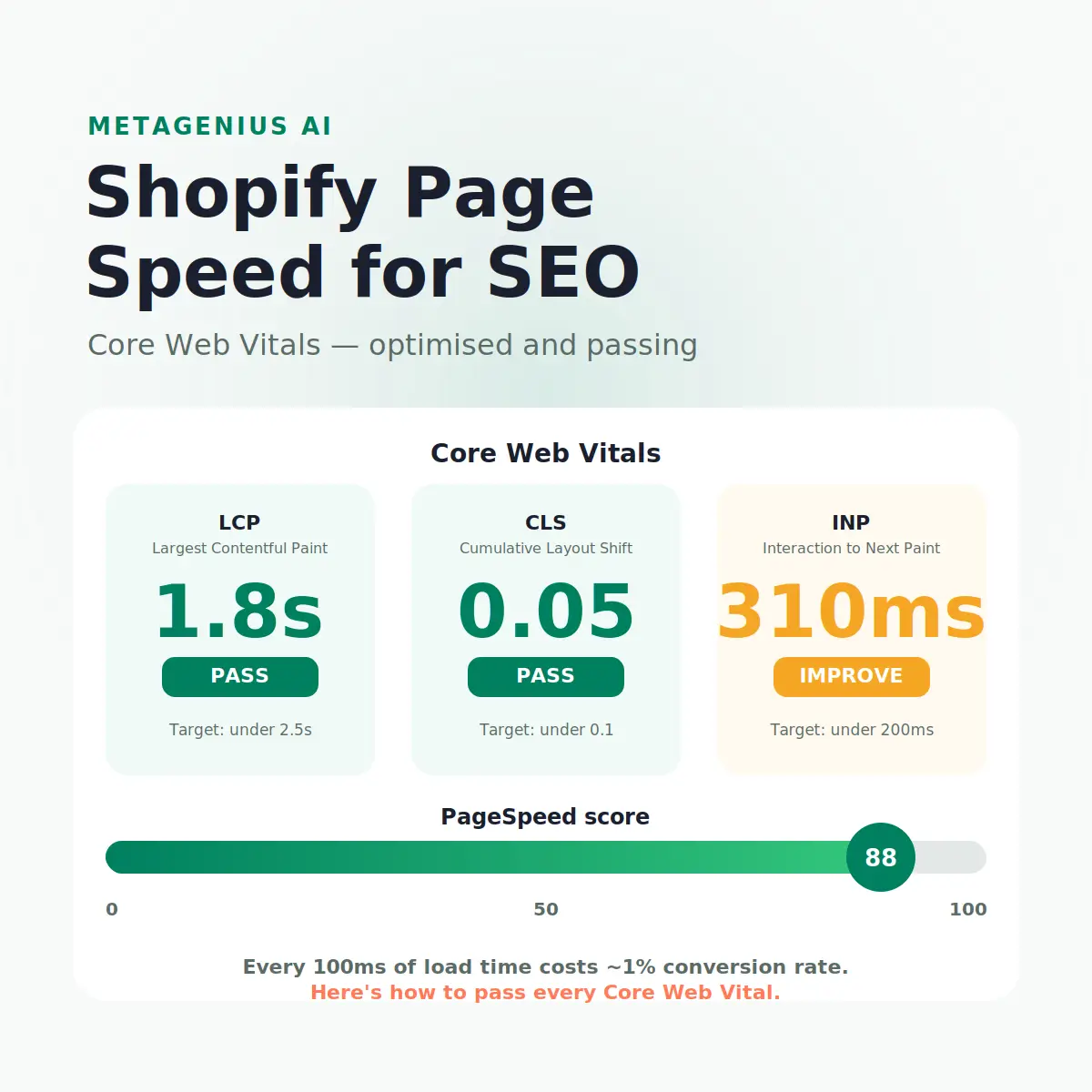
A slow Shopify store loses you twice. It loses the conversion — studies from Google and Deloitte consistently show that each additional 100ms of load time reduces conversions by roughly 1%. But it also loses the ranking, because Core Web Vitals have been a direct Google ranking signal since May 2021. You're not choosing between speed for users and speed for search engines. They're the same thing.
The good news is that Shopify's infrastructure — its global CDN, automatic image compression, and HTTP/3 support — gives merchants a reasonable head start. Most Shopify page speed problems aren't platform problems. They're problems you introduce: oversized images, apps injecting JavaScript on pages that don't need it, web fonts loaded without proper resource hints, and third-party widgets that block rendering. This guide covers exactly where to look and what to fix.
Page Speed and SEO: The Direct Connection
Google's Page Experience update, fully rolled out by March 2022, made Core Web Vitals an explicit ranking factor. This doesn't mean a fast page outranks a slow page with much better content — relevance and authority still dominate at the top of the stack. But in competitive queries where relevance is roughly equal between a set of candidate pages, Core Web Vitals are a tiebreaker, and a meaningful one.
The more commercially significant effect is indirect. Faster pages earn more time-on-site, lower bounce rates, and more return visits — all signals that Google's systems interpret as quality indicators. As Gary Illyes from Google has noted, while speed isn't a top-tier ranking factor on its own, the user experience signals that correlate with page speed are weighted more heavily in quality assessments.
The conversion-ranking feedback loop
Here's why speed investment pays double. Faster load times increase conversion rate, which increases revenue per session. That increased engagement — longer dwell time, more pages per session, more purchases — produces the behavioural signals Google uses as proxy quality measures. The stores that invest in speed don't just rank better on day one; they tend to continue pulling ahead because their engagement metrics strengthen over time.
On a store doing $100K/month, a 10% conversion rate improvement from speed optimisation is $10K/month in incremental revenue. At a typical 2% conversion rate, shaving 400ms off your LCP might push you to 2.1% — that's $5K/month at the same traffic. No ad spend required.
Core Web Vitals Explained for Shopify Stores
Google measures page experience using three Core Web Vitals. Each has a specific threshold separating "Good," "Needs Improvement," and "Poor" ratings. Understanding what each metric measures is essential because the fixes are completely different for each one.
| Metric | What it measures | Good | Needs Improvement | Poor |
|---|---|---|---|---|
| LCP Largest Contentful Paint |
How fast the main visible content loads | ≤ 2.5s | 2.5–4.0s | > 4.0s |
| INP Interaction to Next Paint |
Responsiveness to user interactions | ≤ 200ms | 200–500ms | > 500ms |
| CLS Cumulative Layout Shift |
Visual stability (elements jumping around) | ≤ 0.1 | 0.1–0.25 | > 0.25 |
What typically fails on Shopify stores
LCP is most commonly failed by stores with large, unoptimised hero images or product photos that aren't preloaded. The LCP element on a product page is almost always the main product image — if that image is a 3MB PNG served without WebP conversion, your LCP will be poor on mobile connections regardless of everything else.
INP replaced FID (First Input Delay) in March 2024 as the interactivity metric. It measures the full interaction cycle — not just when the page first responds to a click, but how long the next visual update takes to appear. Shopify stores commonly fail INP because of heavy JavaScript execution from apps, particularly those that register global event listeners or run on every page regardless of whether their feature is used.
CLS is typically caused by images without explicit width and height attributes (the browser doesn't know how much space to reserve), ads loading late and pushing content down, or web fonts causing text to reflow when they finish loading. On Shopify, CLS problems often trace back to theme sections that load asynchronously or apps that inject banners without reserved space.
How to Diagnose Your Shopify Page Speed
Before fixing anything, measure accurately. The two tools that matter most for Shopify speed are PageSpeed Insights and Google Search Console's Core Web Vitals report.
PageSpeed Insights
Go to pagespeed.web.dev and test your homepage, your best-selling product page, and your most-visited collection page. Test each page separately — scores vary significantly across page types on Shopify. A fast homepage can coexist with a slow product page, and the product page is what most of your organic traffic actually lands on.
Focus on the mobile score, not the desktop score. Google's ranking assessment uses mobile-first indexing, and mobile scores are almost always 20–30 points lower than desktop. Most Shopify stores score 85+ on desktop and 45–65 on mobile — the mobile number is what actually affects your rankings.
Google Search Console Core Web Vitals report
In GSC, go to Experience → Core Web Vitals. This shows field data — real measurements from actual Chrome users visiting your store — rather than lab data. Field data is what Google uses for ranking assessments, not PageSpeed lab scores. A page can score 65 in PageSpeed lab mode but "Good" in GSC field data, or vice versa. The GSC field data report is the authoritative source.
For a broader technical SEO checklist that includes speed alongside indexing and on-page optimization, see our Shopify SEO checklist for 2026.
Chrome DevTools Network tab
For identifying specific culprits, open Chrome DevTools (F12) on a product page, go to the Network tab, throttle to "Fast 3G," and reload. Sort by size descending. The largest requests are almost always where to start — large image files, blocking scripts, and unused CSS.
Fix 1: Image Optimization (Biggest Win)
Images are the largest contributors to page weight on Shopify stores. A typical product page with multiple product photos, lifestyle images, and review screenshots can easily add 4–8MB of unoptimised images. Fixing this alone often improves LCP by 1–2 seconds.
Use Shopify's built-in image transformation
Shopify's CDN includes automatic image transformation via URL parameters. In your theme's Liquid templates, always serve images at appropriate sizes using the img_url filter with explicit size parameters: {{ product.featured_image | img_url: '800x' }}. Serving a 4000px hero image for a 400px thumbnail is a common theme mistake that multiplies image weight by 10x.
Ensure WebP is served
Shopify automatically serves WebP format to browsers that support it when you use the img_url filter. WebP typically reduces image size by 25–35% versus JPEG at equivalent quality. However, some older themes use hardcoded image URLs or app-supplied image blocks that bypass this transformation — check your Network tab to confirm Content-Type: image/webp on product images.
Add explicit width and height to images
Every product image in your theme should have explicit width and height attributes. This is the primary fix for CLS — without them, the browser has no reserved space for the image and the page layout shifts when images load. In Liquid, this is typically: <img src="..." width="{{ image.width }}" height="{{ image.height }}" alt="{{ image.alt }}">.
Preload the LCP image
The main product image on product pages is almost always the LCP element. Adding a preload hint for this image tells the browser to fetch it immediately rather than discovering it when the HTML parses. In your theme.liquid <head>, add: <link rel="preload" as="image" href="{{ product.featured_image | img_url: '800x' }}"> for product pages.
Image alt text — the SEO multiplier
Fast images that load quickly but carry no alt text miss a major ranking opportunity. Image alt text is what drives Google Image Search traffic — and with 20 billion+ image searches monthly, it's a significant channel. For stores with hundreds of product images, writing individual alt text manually is impractical. MetaGenius AI bulk-generates SEO-optimized alt text for every product image in your catalog in minutes — the speed win and the SEO win, together.
Fast images need great alt text to rank in image search.
MetaGenius AI bulk-generates SEO alt text and meta tags for your entire Shopify catalog — in seconds, with a live Google preview. Free plan, no credit card needed.
Install MetaGenius AI Free →Fix 2: App and Script Bloat
Every Shopify app you install has the potential to inject JavaScript, CSS, or pixel tracking code into every page of your store — whether that page uses the app's feature or not. A store with 20 installed apps, each adding 50–200KB of script, can add 1–4MB of JavaScript payload that must be downloaded and parsed before the page becomes interactive.
Audit your app scripts
In Chrome DevTools, go to the Coverage tab (Ctrl+Shift+P → type "coverage"). Load a product page and see the breakdown of JavaScript loaded but not executed. Red bars indicate unused code. A common finding is that 40–60% of the JavaScript on a Shopify store comes from apps that aren't actively used on that page type — a chat widget loading on every page, a size guide app loading on collection pages, a subscription app loading on pages with no subscription products.
Remove or uninstall unused apps
An uninstalled app doesn't always remove its script tags from your theme. After uninstalling any app, check your theme.liquid, product.liquid, and checkout.liquid files for leftover <script> tags or {% render %} calls that reference the removed app. These orphaned scripts continue loading code from the app's servers, which may even 404, causing additional latency.
Defer non-critical scripts
For scripts that must stay — live chat, review widgets, loyalty apps — ensure they load with defer or async attributes rather than synchronously. A synchronously loaded script blocks HTML parsing until it completes. In contrast, a deferred script loads in parallel and executes after the HTML is parsed, which prevents it from delaying LCP.
Limit third-party pixels
Meta Pixel, TikTok Pixel, Google Tag Manager, Klaviyo, and similar marketing scripts add significant JavaScript weight and can affect INP by monopolising the main thread. Use a tag manager (GTM) rather than installing each pixel individually — it reduces HTTP requests and gives you control over load order and trigger conditions. More importantly, use GTM's triggers to fire pixels only when relevant (e.g. fire purchase pixels only on the order confirmation page, not on every product page).
Fix 3: Theme and CSS/JS Optimization
Your Shopify theme determines how much CSS and JavaScript is loaded on every page. A well-optimised theme like Shopify's Dawn is built with performance as a design principle — it scores 90+ on mobile PageSpeed out of the box. Heavily customised themes or older premium themes often score 30–50 on mobile due to legacy JavaScript patterns and large CSS files.
Evaluate your theme's PageSpeed baseline
Before customising, test your theme's demo store on PageSpeed Insights. This gives you the baseline performance score with no apps installed and no customisations. If the theme scores below 70 on mobile in its default state, consider switching to a more performant theme before spending time optimising around it. Dawn and other Shopify-built themes consistently score 85–95 on mobile with default settings.
Eliminate render-blocking resources
Render-blocking resources are CSS or JavaScript files that must be fully loaded before the browser can display anything. Use the PageSpeed Insights "Eliminate render-blocking resources" recommendation to identify specific files. CSS should ideally load non-critical styles asynchronously. When it comes to JavaScript, add defer wherever possible.
Minimise unused CSS
Many Shopify themes ship with CSS for every possible section and component, most of which isn't used on any given page. Tools like PurgeCSS can identify unused CSS rules, though implementing this on Shopify requires care since Liquid renders some classes dynamically. A simpler approach is removing unused theme sections from your theme customiser entirely — sections that aren't added to any page still load their CSS.
Fix 4: Web Fonts and Third-Party Embeds
Web font performance
Web fonts are a common CLS cause. When the browser initially renders text using a fallback system font, then swaps to the web font when it loads, text blocks shift in size and position — triggering CLS. The fix is the font-display: swap CSS property, which tells the browser to show text in the fallback font immediately and swap to the web font without shifting the layout.
Additionally, preloading your primary web font reduces the time to font swap. In theme.liquid, add: <link rel="preload" as="font" href="[font-url]" crossorigin> for the fonts used in your above-the-fold content. Limiting your font stack to one or two custom fonts (and eliminating decorative fonts used in footers or less-visited sections) can meaningfully reduce initial page weight.
YouTube embeds and iframes
A YouTube embed on a product page loads approximately 500KB of JavaScript from YouTube's CDN, regardless of whether the user watches the video. For stores using video on product pages, use a "facade" pattern: show a static image (the video thumbnail) until the user clicks to play, at which point the actual iframe loads. This technique, recommended in web.dev's performance guidance, can eliminate a significant JavaScript payload from your initial load.
Google Maps and live chat widgets
Same principle applies. A Google Maps embed loads 1MB+ of script, and live chat widgets (Gorgias, Tidio, Intercom) add another 200–500KB on top. Instead of embedded frames, use a static map image with a link to Google Maps. Similarly, load chat widgets only on pages where customers genuinely need support — typically the contact page, order page, and checkout — rather than on every product page.
What Shopify Already Handles for You
Before spending time on infrastructure-level optimisations, understand what Shopify does automatically — because fighting the platform's built-in optimisations is a common mistake.
- Global CDN: Shopify's CDN (via Fastly) serves static assets from edge nodes close to the user. You don't need a separate CDN for theme assets, images, or JavaScript hosted in Shopify's asset pipeline.
- HTTP/3 and TLS 1.3: Shopify automatically uses the latest transport protocols. These reduce connection overhead, particularly on mobile networks.
- Automatic image compression: Shopify compresses uploaded images and serves them via the
img_urlfilter. Don't upload pre-compressed images at reduced quality — let Shopify handle it from the original. - Browser caching: Shopify sets appropriate cache headers for static assets. Theme assets are typically cached for one year. You don't need to configure this.
- GZIP/Brotli compression: HTML, CSS, and JS responses are compressed automatically.
In practice, this means you shouldn't invest in server-level performance optimisation for Shopify. Shopify's hosting infrastructure is optimised and maintained by their engineering team. Your time is better spent on the application-level issues — images, scripts, and fonts — covered above. For a full technical SEO picture that includes speed as one component, see our complete Shopify SEO guide.
Frequently Asked Questions
A fast store gets indexed. An optimised store gets ranked.
MetaGenius AI bulk-generates image alt text, meta titles, and descriptions for every product and collection in your Shopify store — in seconds, in 15+ languages, with a live Google SERP preview before you publish.
Install Free on the Shopify App Store →