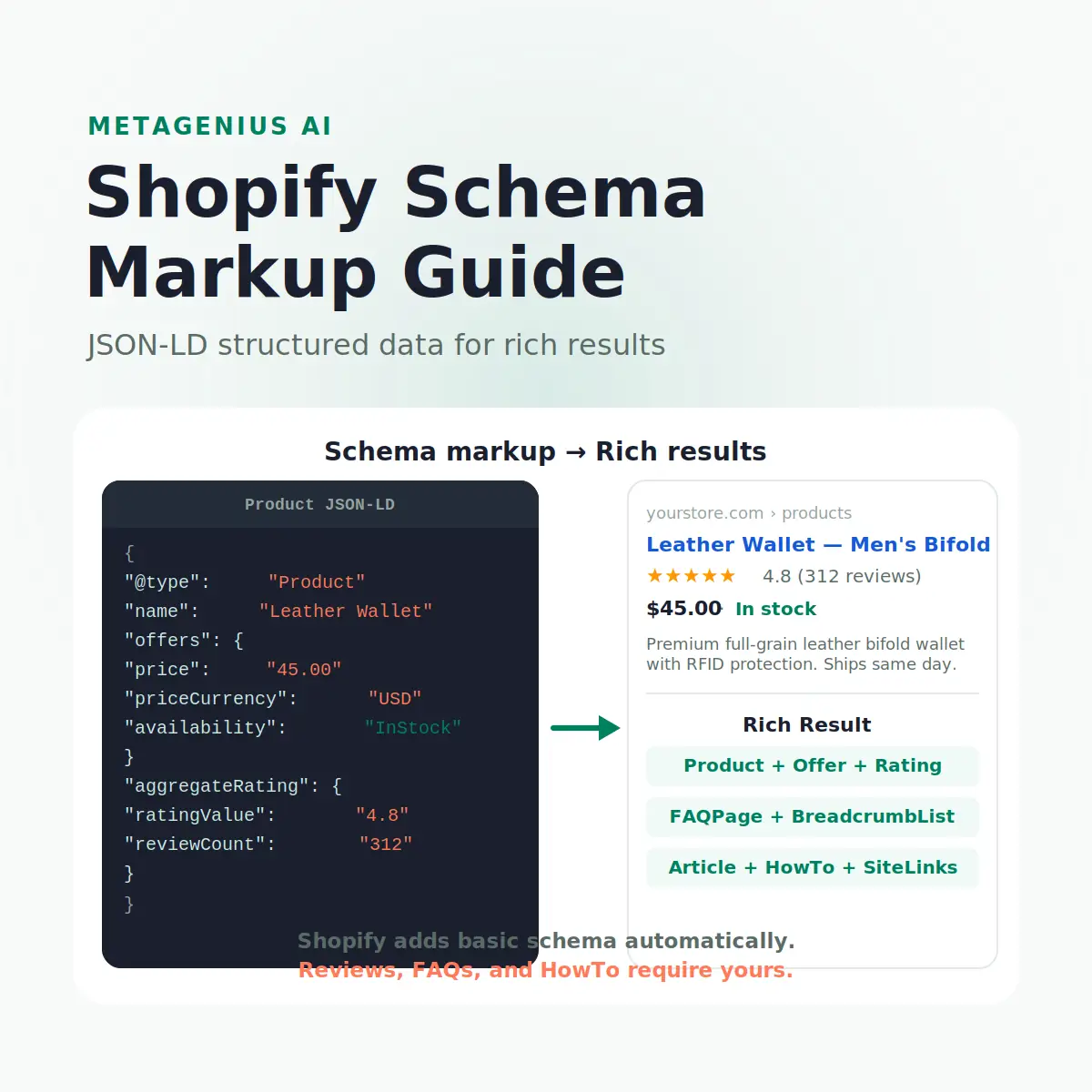
Schema markup is the layer between your store and Google's ability to show it richly. Without it, your product listings appear as text links in the SERP — a title, a URL, and maybe a description. With the right structured data, they become rich results: star ratings, prices, availability, FAQ answers, and breadcrumb trails all visible before a shopper ever clicks.
The catch is that Shopify handles some schema for you automatically and leaves the rest for you to implement. Understanding exactly where that line falls — what you have, what you're missing, and how to add what's absent — is what this guide covers. By the end, you'll have a clear implementation plan and the exact JSON-LD snippets to execute it.
What Is Schema Markup?
Schema markup is structured data that tells search engines what the content on your pages means — not just what it says. A product page has a title, price, description, and reviews. To a human reader, the meaning is obvious. But to Google's crawler, it's a stream of text without context. Schema markup translates that meaning into a machine-readable format.
The standard is maintained at schema.org — a collaborative project between Google, Bing, Yahoo, and Yandex. JSON-LD (JavaScript Object Notation for Linked Data) is Google's preferred implementation method. You add a <script type="application/ld+json"> block to the page's <head> containing the structured data. Google reads it independently of the visible page content.
What schema markup can get you in the SERP
- Star ratings and review counts next to your product title (requires AggregateRating)
- Price and availability shown directly in search results (requires Offer)
- FAQ dropdowns that expand below your result (requires FAQPage)
- Breadcrumb trails showing your site hierarchy (requires BreadcrumbList)
- HowTo step snippets for instructional content (requires HowTo)
- Sitelinks search box for branded queries (requires SearchAction)
Google's own data shows that rich results generate measurably higher click-through rates than standard blue links — the exact lift varies by result type and vertical, but a 20–30% CTR improvement on product listings with star ratings is consistently reported in controlled comparisons. The August 2024 Core Update also reinforced E-E-A-T signals, and structured data that demonstrates genuine reviews and product expertise was one of the factors correlated with recovery among e-commerce sites that had dropped.
What Schema Markup Shopify Adds Automatically
Before you add anything, know what you already have. Shopify's default themes (Dawn, Debut, and most major third-party themes) include schema markup out of the box:
| Schema type | Auto in Shopify? | Rich result it enables |
|---|---|---|
| Product | ✓ Yes (basic) | Product snippet in Shopping tab |
| Offer (price + availability) | ✓ Yes | Price shown in organic SERP |
| BreadcrumbList | ✓ Yes | Breadcrumb trail in SERP |
| SearchAction / Sitelinks | ✓ Yes (homepage) | Sitelinks search box on brand queries |
| AggregateRating (stars) | ✕ No — needs reviews app | Star ratings + review count in SERP |
| FAQPage | ✕ No — must add manually | FAQ dropdowns below SERP result |
| Article | ✕ No — needed for blog posts | Article eligibility for Top Stories |
| HowTo | ✕ No — must add manually | Step-by-step rich result |
| Organization / LocalBusiness | ✕ No | Knowledge panel signals |
The counterintuitive finding: Shopify's auto-generated Product schema is often incomplete by Google's recommended standards. It typically includes name, URL, and offers — but may omit description, image, SKU, and brand. Incomplete Product schema still generates rich results but is less likely to be selected for enhanced product carousels. Filling in the gaps matters.
Schema Types Worth Adding to Your Shopify Store
Not every schema type is worth implementing on a Shopify store. Instead, prioritise based on the rich result it enables and the effort required. Here's the priority stack for a typical Shopify store:
Priority 1: AggregateRating (star ratings)
This is the highest-impact addition. Star ratings in organic results are one of the strongest click-through signals available. They require reviews data — which must come from a legitimate reviews source (Shopify Product Reviews, Judge.me, Yotpo, Okendo, etc.). Most reviews apps handle the AggregateRating schema output automatically, but verify in your page source that the schema is present and that ratingValue and reviewCount are populated.
Critical rule from Google's structured data guidelines: you cannot self-generate fake review counts. Doing so violates Google's spam policies and can result in manual actions. Specifically, the reviews must come from users — your reviews app handles this correctly by pulling from actual submitted reviews.
Priority 2: FAQPage
FAQPage schema adds expandable question-and-answer dropdowns directly below your SERP listing. For informational pages, blog posts, product pages with FAQ sections, and collection pages answering "what is X" queries, this can double the vertical space your result occupies on the page — pushing competitors down. It requires matching Q&A content to be visible on the page itself, not just in the schema.
Priority 3: Complete Product + Offer schema
Extend Shopify's auto-generated Product schema to include: description, image, brand (as an Organization or Brand type), sku, and a complete Offer object with priceValidUntil, seller, and itemCondition. Full Product schema is a prerequisite for Google Merchant Center's free Shopping listings.
Priority 4: Article schema for blog posts
Blog posts need Article schema to be eligible for Google's Top Stories carousel and News results. Shopify themes rarely output this for blog templates. The schema should include headline, author, publisher, datePublished, dateModified, and image.
Priority 5: Organization / LocalBusiness
Adding an Organization schema block to your homepage (or a site-wide JSON-LD block) helps Google build the Knowledge Panel for your brand — important for stores with significant branded search volume. Include name, url, logo, sameAs (social profile URLs), and contactPoint.
How to Add JSON-LD Schema Markup in Shopify
There are three ways to add custom schema to Shopify. Choose based on your technical comfort and how many pages need the schema:
Method 1: Liquid snippet in theme templates (recommended)
The cleanest approach. Create a snippet file containing your JSON-LD and include it in the relevant template (product, collection, article, or page).
Open theme code editor
Go to Online Store → Themes → Actions → Edit code. Navigate to the Snippets folder.
Create a new snippet
Click "Add a new snippet" and name it appropriately — e.g. schema-faqpage, schema-article, schema-organization.
Paste your JSON-LD
Add the <script type="application/ld+json"> block with your structured data. Use Liquid variables ({{ product.title }}, {{ product.price | money_without_currency }}) to make it dynamic.
Include it in the right template
In the relevant template file (e.g. templates/product.liquid or sections/main-product.liquid), add {%- render 'schema-faqpage' -%} inside the <head> section or directly in the template body.
Method 2: ACF / Custom metafields (easiest for non-developers)
Shopify metafields allow you to store JSON-LD as a per-page field and render it via a theme snippet. This is how the MetaGenius AI blog uses its Schema ACF field — paste the JSON-LD into a metafield, and a single snippet outputs it in the <head>. No code changes needed per product; just paste and save. This is the most maintainable approach for stores with large catalogs where schema content varies per page.
Method 3: Global site-wide JSON-LD in theme.liquid
For schema that applies to every page (Organization, Sitelinks SearchAction), add the JSON-LD block directly in theme.liquid inside <head>. Keep it to truly site-wide types only — don't put page-specific schema here.
Schema tells Google what your pages are. Meta tags tell shoppers to click them.
MetaGenius AI generates AI-optimized meta titles, meta descriptions, and image alt text for every product and collection in your catalog — bulk, in seconds, with a live Google SERP preview. Free plan available.
Install MetaGenius AI Free →Product Schema: Full Implementation
Here's a complete, Google-compliant Product schema snippet for Shopify using Liquid variables. This extends Shopify's auto-generated schema with the fields most commonly missing:
<script type="application/ld+json">
{
  "@context": "https://schema.org/",
  "@type": "Product",
  "name": "{{ product.title | escape }}",
  "url": "{{ shop.url }}{{ product.url }}",
  "image": "https:{{ product.featured_image | img_url: '1024x' }}",
  "description": "{{ product.description | strip_html | truncate: 300 | escape }}",
  "sku": "{{ product.selected_or_first_available_variant.sku | escape }}",
  "brand": {
    "@type": "Brand",
    "name": "{{ product.vendor | escape }}"
  },
  "offers": {
    "@type": "Offer",
    "priceCurrency": "{{ cart.currency.iso_code }}",
    "price": "{{ product.selected_or_first_available_variant.price | money_without_currency }}",
    "availability": "{% if product.available %}https://schema.org/InStock{% else %}https://schema.org/OutOfStock{% endif %}",
    "itemCondition": "https://schema.org/NewCondition",
    "url": "{{ shop.url }}{{ product.url }}",
    "seller": {
      "@type": "Organization",
      "name": "{{ shop.name | escape }}"
    }
  }
}
</script>
Add this snippet at the end of your sections/main-product.liquid file. If your reviews app outputs AggregateRating separately, check that it's not conflicting — you should have one Product type with aggregateRating nested inside it, not two separate Product blocks.
The AggregateRating integration
When your reviews app (Judge.me, Yotpo, Okendo, etc.) outputs star rating schema, verify it nests the aggregateRating property inside the existing Product object — not as a separate top-level AggregateRating block. Google's Merchant Center requires the rating to be part of the Product type, not standalone. Check your page source for duplicate or orphaned AggregateRating blocks after installing any reviews app.
FAQPage Schema: The Highest-ROI Addition
FAQPage schema is the one most Shopify stores are missing and most able to add without a developer. If you have a visible FAQ section on a product page, collection page, or blog post — with questions and answers visible to users — you can add FAQPage schema to that content and become eligible for expandable FAQ rich results.
A working FAQPage block:
<script type="application/ld+json">
{
  "@context": "https://schema.org",
  "@type": "FAQPage",
  "mainEntity": [
    {
      "@type": "Question",
      "name": "How long does shipping take?",
      "acceptedAnswer": {
        "@type": "Answer",
        "text": "Standard shipping takes 3–5 business days. Express shipping (1–2 days) is available at checkout."
      }
    },
    {
      "@type": "Question",
      "name": "What is your return policy?",
      "acceptedAnswer": {
        "@type": "Answer",
        "text": "We offer 30-day hassle-free returns on all products. Items must be unused and in original packaging."
      }
    }
  ]
}
</script>
FAQPage eligibility rules
Google's rules for FAQPage eligibility: the questions and answers in the schema must appear verbatim (or substantially) on the page itself. You cannot add FAQ schema for questions that aren't visible to users — that's considered hidden structured data and can trigger a manual action. Each page should have one FAQPage schema block; multiple FAQPage blocks on the same page produce unpredictable results.
The ROI case is clear: a product page with FAQ rich results can take up twice the SERP space of a standard result. On competitive queries where you're ranking position 3–5, FAQ expansion can increase CTR by more than ranking position 1–2 without it.
Article and HowTo Schema for Blog Posts
Shopify's blog templates don't output Article schema by default. This means your blog posts miss eligibility for Google's Top Stories carousel, Article rich results in image search, and the enhanced byline display that Article schema enables. For stores running content marketing alongside their product catalog — a significant SEO investment — this is worth fixing.
A complete Article schema block for a Shopify blog post template:
<script type="application/ld+json">
{
  "@context": "https://schema.org",
  "@type": "Article",
  "headline": "{{ article.title | escape }}",
  "image": "https:{{ article.image | img_url: '1200x630' }}",
  "datePublished": "{{ article.published_at | date: '%Y-%m-%dT%H:%M:%S' }}",
  "dateModified": "{{ article.updated_at | date: '%Y-%m-%dT%H:%M:%S' }}",
  "author": {
    "@type": "Person",
    "name": "{{ article.author | escape }}"
  },
  "publisher": {
    "@type": "Organization",
    "name": "{{ shop.name | escape }}",
    "logo": {
      "@type": "ImageObject",
      "url": "{{ settings.logo | img_url: '600x' | prepend: 'https:' }}"
    }
  },
  "description": "{{ article.excerpt_or_content | strip_html | truncate: 200 | escape }}"
}
</script>
For how-to posts (installation guides, tutorials, step-by-step content), add a HowTo block alongside the Article schema. HowTo rich results can show individual steps directly in the SERP, with duration estimates — particularly effective for instructional content in the DIY and home improvement verticals, but also valuable for Shopify stores that sell products requiring setup or assembly.
The important E-E-A-T connection
Since the August 2024 Core Update, Cyrus Shepard's analysis of winners and losers showed that Article schema paired with clear authorship signals (a real named author with a linked author page) correlated with recovery in content-heavy sites. In practice, the schema alone doesn't prove E-E-A-T — but it makes it easier for Google to identify and reward the authorship signals you've already established.
Validating Your Shopify Schema Markup
Adding schema without validating it is a common mistake. Invalid JSON-LD syntax, missing required properties, or schema types that don't match the page content can all result in rich results being suppressed without warning. Fortunately, the tooling to catch these issues is free and fast.
Validation tools
- Google's Rich Results Test (search.google.com/test/rich-results) — tests a live URL or pasted code snippet and shows which rich results it's eligible for and why it may be failing.
- Schema.org Validator (validator.schema.org) — validates JSON-LD syntax and schema.org property compliance.
- Google Search Console → Enhancements — shows rich result errors across your entire site, broken down by schema type. This is where you'll see if Product, FAQPage, or Article schema is producing errors at scale.
Validation checklist
- JSON syntax is valid (no trailing commas, all brackets closed)
- Required properties for each type are present (Google's documentation lists these per type)
- Schema content matches what's visible on the page
- No duplicate schema blocks of the same type on the same page
- All URLs in the schema are absolute (including https://)
- Image URLs resolve and return the actual image (not a redirect)
Common Schema Markup Errors on Shopify
These mistakes range from minor (missing optional properties) to significant (duplicate Product schema suppressing rich results site-wide). As a result, even stores that have added schema often see no rich results because of one of these errors. For a broader technical SEO diagnosis, our guide to why Shopify SEO isn't working covers schema errors alongside the other common culprits.
Duplicate Product schema
The most common Shopify schema error: both the theme's auto-generated Product schema and a reviews app's schema output a Product type on the same page. As a result, Google processes both, which creates conflicting data. The fix: either disable the theme's Product schema or configure the reviews app to merge its data rather than outputting a separate Product block. Check your GSC Enhancements report for "Duplicate field" warnings as the signal.
Price formatted as currency string
In Liquid, {{ product.price | money }} outputs something like "$45.00". Schema requires price as a number string without currency symbol: {{ product.price | money_without_currency }}. Getting this wrong produces a "price format not valid" warning in the Rich Results Test and prevents the price from appearing in organic results.
Schema content not matching visible page
As John Mueller has emphasised, Google cross-references structured data against the rendered page content. FAQ questions in the schema that aren't visible to users, or prices in schema that differ from the displayed price, both flag as misleading structured data — a violation that can suppress rich results for the entire domain. Always keep schema in sync with visible content.
Missing required Offer properties
Google requires certain Offer properties for a Product to be eligible for Shopping rich results: price, priceCurrency, and availability are the three most commonly missing. Additionally, Google's product data specification requires that prices match across schema, page display, and any Google Merchant Center feed. Inconsistency across these three sources is one of the most common reasons Shopify products get disapproved in Merchant Center.
Frequently Asked Questions
Schema structures your data. Meta tags structure your rankings.
MetaGenius AI bulk-generates SEO-optimized image alt text, meta titles, and descriptions for every product, collection, and page in your Shopify store — in seconds, in 15+ languages, with a live Google SERP preview before anything goes live.
Install Free on the Shopify App Store →