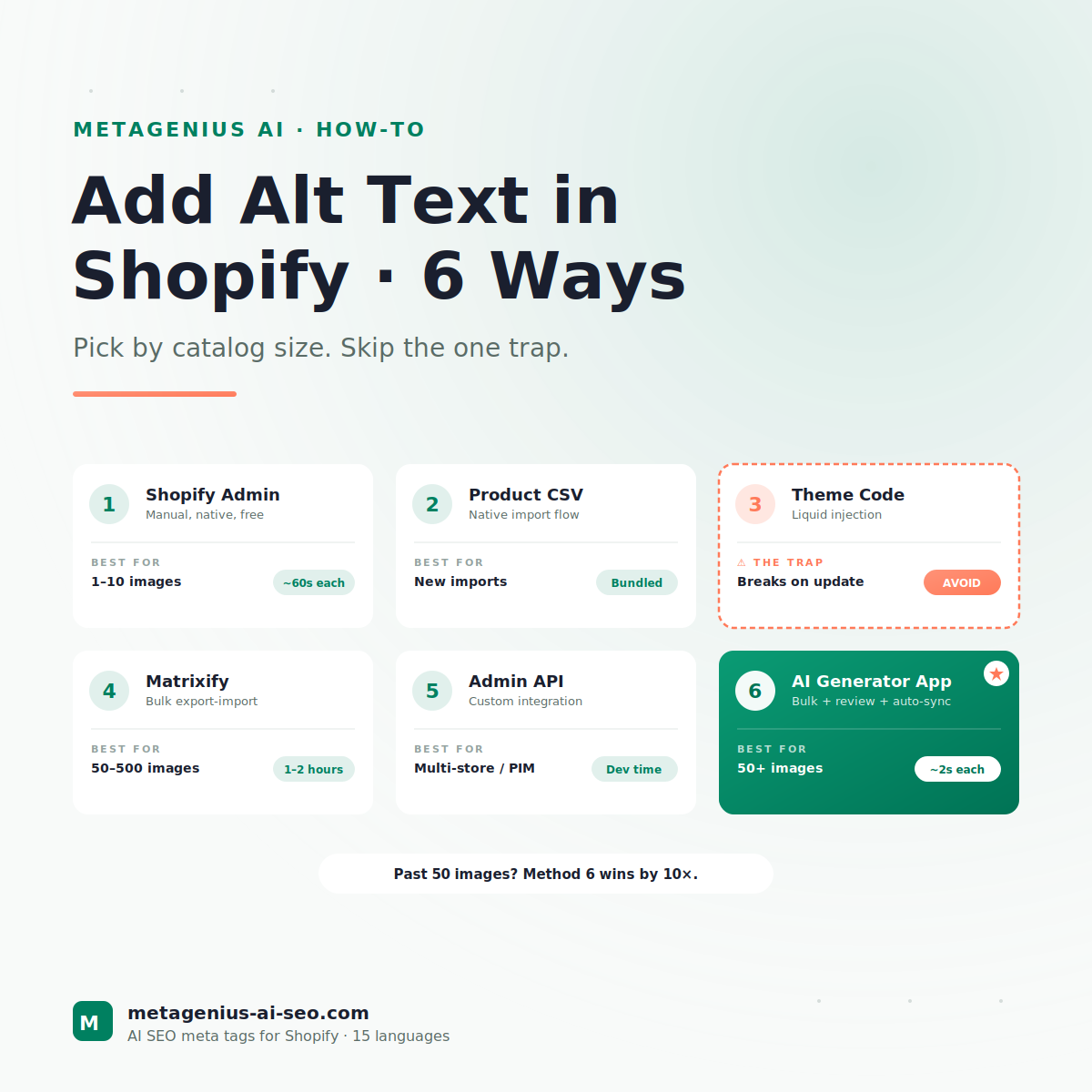
Most "how to add alt text in Shopify" guides give you one method — usually the admin click-by-click — and call it done. That's fine if your catalog is 20 products. It's a productivity disaster if your catalog is 200, and an actual mistake if your catalog is 2,000.
There are six different ways to add alt text in Shopify. They produce identical SEO and accessibility outcomes — Google and screen readers don't care how the text got there. What differs is the time, the failure modes, and the catalog-size threshold where each method tips from "right answer" to "wrong answer."
This guide walks through all six, with the exact steps for each and an honest read on when to use it. The shortest path: skip to the decision tree, find your catalog size, and jump to that section.
Quick Decision Tree
Five seconds of self-categorization saves you reading the wrong section:
| Your situation | Right method | Time estimate |
|---|---|---|
| Adding alt text to 1-10 images today | Method 1: Shopify Admin | 10 minutes |
| Setting up alt text during new product import | Method 2: Product CSV | Bundled with import |
| 50-200 images, comfortable with spreadsheets | Method 4: Matrixify export/import | 1-2 hours |
| 200-5,000 images, want it done in an afternoon | Method 6: AI generator app | 30-90 minutes |
| Building a custom integration / multi-store | Method 5: Admin API | Developer time |
| Anything else | Method 6 (AI generator app) | — |
Why Method 3 (theme code) isn't on this list
You'll find dozens of tutorials online suggesting you edit your theme's Liquid templates to inject alt text dynamically. Don't. We cover it below to explain why, but it's the trap every Shopify SEO consultant has had to undo at least once.
Method 1: Shopify Admin (Manual)
The official, native way. Free. Works on every plan. Right answer when your catalog is small or you only need to fix a handful of images.
Step-by-step
- Shopify Admin → Products → click the product you want to edit
- Scroll to the Media section
- Click the image thumbnail (or click the image to open the preview, then click Edit)
- Click Add alt text
- Type the description (8-15 words is the sweet spot — see our complete alt text guide for what good looks like)
- Click Save
- Repeat for every image on every product
When to use this method
- You have under 10-15 images total to add or update
- You're doing a one-off fix on a specific high-traffic page
- You want full per-image creative control with no automation
When NOT to use this method
- More than 50 images. The math: 60 seconds × 50 images = 50 minutes of pure clicking. You'll lose focus by image 30 and start writing inconsistent descriptions.
- You have variant images (each variant counts as a separate image entry).
- You manage multiple stores.
Method 2: Product Import CSV
Shopify's native product import accepts a CSV with an Image Alt Text column. If you're already importing products from a supplier feed, dropshipping app, or a previous platform — this is the path of least resistance.
Step-by-step
- Shopify Admin → Products → click Import
- Download the sample CSV (Download a sample CSV template link)
- In your CSV, populate the
Image Alt Textcolumn for every image row - Make sure each variant/image row has its own alt text — the CSV uses one row per image, not per product
- Upload the completed CSV
- Shopify imports and applies the alt text on first save
The catch
This method only works during a fresh import or full overwrite. If you've already added products and now want to bulk-update existing alt text via CSV, you need Method 4 (Matrixify or similar export-import tool), not Method 2. Shopify's native CSV import is overwrite-on-conflict, which means it'll happily replace your existing products if you re-import — including the descriptions, pricing, and inventory you've already curated. Be careful.
When to use this method
- Launching a new store with products coming from a CSV anyway
- Migrating from another platform and re-importing your catalog
- Adding a large batch of new products via supplier feed
Method 3: Theme Code Injection (The Trap)
Dozens of older tutorials suggest editing product-template.liquid or similar files to inject alt text dynamically, usually with Liquid like:
{{ image | img_tag: image.alt | default: product.title }}
This works once. Then breaks. Here's why it's a trap:
Three failure modes
- Theme updates wipe it. Every time your theme publisher pushes an update and you accept it, your custom Liquid edits roll back to defaults. Your alt text disappears overnight, and you won't notice until your Image Search impressions drop 30 days later.
- It's not real alt text. The product title isn't a description of the image. Three images of the same product all get identical alt text. Google sees the duplication and treats your images as essentially equivalent — defeating the entire image-SEO purpose.
- No accessibility benefit. WCAG 2.2 requires that alt text describe the specific image, not the generic product. Auto-injected product titles fail accessibility audits and don't protect you from ADA lawsuits.
If you've already done this
Roll it back. Edit your product-template.liquid (or wherever the injection lives), restore the default Liquid, and use a real method to populate alt text. The longer the injection stays in your theme, the more pages have low-quality auto-generated alt text and the more cleanup you'll have to do.
Honest note: there's one narrow case where dynamic fallback is acceptable — using image.alt | default: "" to ensure empty alts don't break HTML validation. That's a fallback, not a generation strategy. If your theme is using product titles as alt text, it's the wrong method.
Method 4: Matrixify / Bulk Export-Import
Matrixify (formerly Excelify) is the de facto bulk-edit tool for Shopify catalogs in 2026. Free up to a point, paid for serious use. It lets you export your entire product catalog including image alt text, edit in Excel/Google Sheets, and re-import — with non-destructive updates that don't overwrite untouched fields.
Step-by-step
- Install Matrixify from the Shopify App Store (free tier covers small stores)
- Shopify Admin → Apps → Matrixify → Export
- Select Products as the data type, include Image Alt Text in the columns
- Download the export (Excel or CSV)
- Edit the
Image Alt Textcolumn for every row where it's empty - Save the file
- Matrixify → Import → upload your edited file → run import
When this method shines
- You're comfortable in spreadsheets and prefer offline editing
- Catalog of 50-1,000 images where you want full creative control over wording
- You want a permanent off-Shopify record of all alt text (the exported file becomes your audit trail)
When this method falls apart
- Writing the alt text is still manual. Matrixify moves the bottleneck from "click rate" to "typing rate" — typing is faster than clicking, but still slow at scale.
- For 500+ images, you're still looking at 6-10 hours of typing in a spreadsheet.
- No image preview while writing — you're working from filenames and product titles, which is harder than seeing the actual image.
Method 5: Shopify Admin API
If you're building a custom integration, syncing alt text from a PIM system, or managing multiple stores programmatically, the Shopify Admin API exposes the productImage resource with an editable alt field.
The basic endpoint
From the Shopify Admin REST API documentation:
PUT /admin/api/2024-10/products/{product_id}/images/{image_id}.json
Payload (JSON):
{"image": {"id": 123, "alt": "Brown bifold leather wallet shown open with six card slots"}}
When this method is the right call
- You're integrating Shopify with a PIM (Akeneo, Plytix, inRiver) and alt text is canonical there
- You manage 5+ Shopify stores and want a single integration to handle alt text consistency across all of them
- You're building an in-house tool because your specific workflow can't be handled by any off-the-shelf app
When this method is overkill
For a single store under 5,000 images, building API integration is solving a problem an off-the-shelf app already solved. The labor cost of a developer-hour ($50-$200 depending on geography) versus a $14.99/month app is almost always wrong for a single-store use case. Method 6 (AI generator app) wins on cost AND speed.
Method 6: AI Generator App
The catalog-scaling answer. Install once, generate across the entire catalog, review in bulk, publish. This is the method MetaGenius AI was built for, alongside other AI SEO apps on the Shopify App Store.
Step-by-step (using MetaGenius AI as the example)
- Install MetaGenius AI from the Shopify App Store (free plan available, 10 generations)
- Open the app in your Shopify Admin
- Navigate to Image Alt Text (Pro plan feature)
- Select scope: all products / specific collection / single product
- Optional: set custom AI instructions for your brand voice ("always include material if visible," "use 'crafted' instead of 'made'," etc.)
- Click Generate
- Review the generated alt text in the live preview
- Approve, regenerate, or edit individual entries before publish
- Click Save to Shopify — alt text is pushed via the Admin API in seconds
What this method costs
MetaGenius AI's Pro plan is $14.99/month. That covers 500 generations — enough for most 100-200 product stores (with 3-5 images per product). For comparison: a freelance copywriter at $1 per image alt text would cost $500-$1,000 for the same coverage. The math isn't subtle.
Where AI alt text generation falls apart
We covered this in detail in our analysis of AI meta tag generators, but the short version: AI alt text without product-data grounding produces generic output (a forest-green hat described as "dark green cap"). Tools using vision-AI + product-data grounding (Pattern 2 or 3 architectures) produce specific output. Test the free plan before paying — output quality is the only thing that matters.
Bulk alt text. Live preview. Built for Shopify.
MetaGenius AI's Pro plan covers 500 alt text generations per month with vision-AI + your actual product data. Custom brand voice rules, native 15-language support, and a live preview before save. Free plan available — test the output before committing.
Install Free on Shopify →After You Add Alt Text
You've added alt text. Now what?
1. Submit your sitemap (if you haven't recently)
Google needs to recrawl your image URLs to pick up the new alt text. Resubmitting your sitemap in Google Search Console nudges this along. Typically 7-14 days for recrawl, 30-60 days for measurable impression growth.
2. Watch the Image Search tab in GSC
Google Search Console → Performance → set Search type to Image. This is the dashboard you'll check 30, 60, and 90 days from now. Stores starting from zero alt text typically see 25-60% image impression growth in 60 days, per the patterns we shared in our complete alt text guide.
3. Enable auto-sync for new products
The compounding win: turn on auto-generation so every new product gets alt text on creation via Shopify webhooks. MetaGenius AI handles this on the Pro plan. Without auto-sync, you'll repeat this whole project every quarter as you add new products.
4. Pair this with meta tag and description fixes
Stores that fix alt text usually have parallel gaps in title tags and meta descriptions. Our bulk edit meta tags guide covers the parallel workflow. Most stores benefit from running both projects in the same week.
Frequently Asked Questions
Method 6, in under 30 seconds.
MetaGenius AI's Pro plan handles bulk alt text generation across products, collections, blogs, and pages — with vision-AI grounded in your real product data. Free plan available, no credit card required.
Install Free on the Shopify App Store →