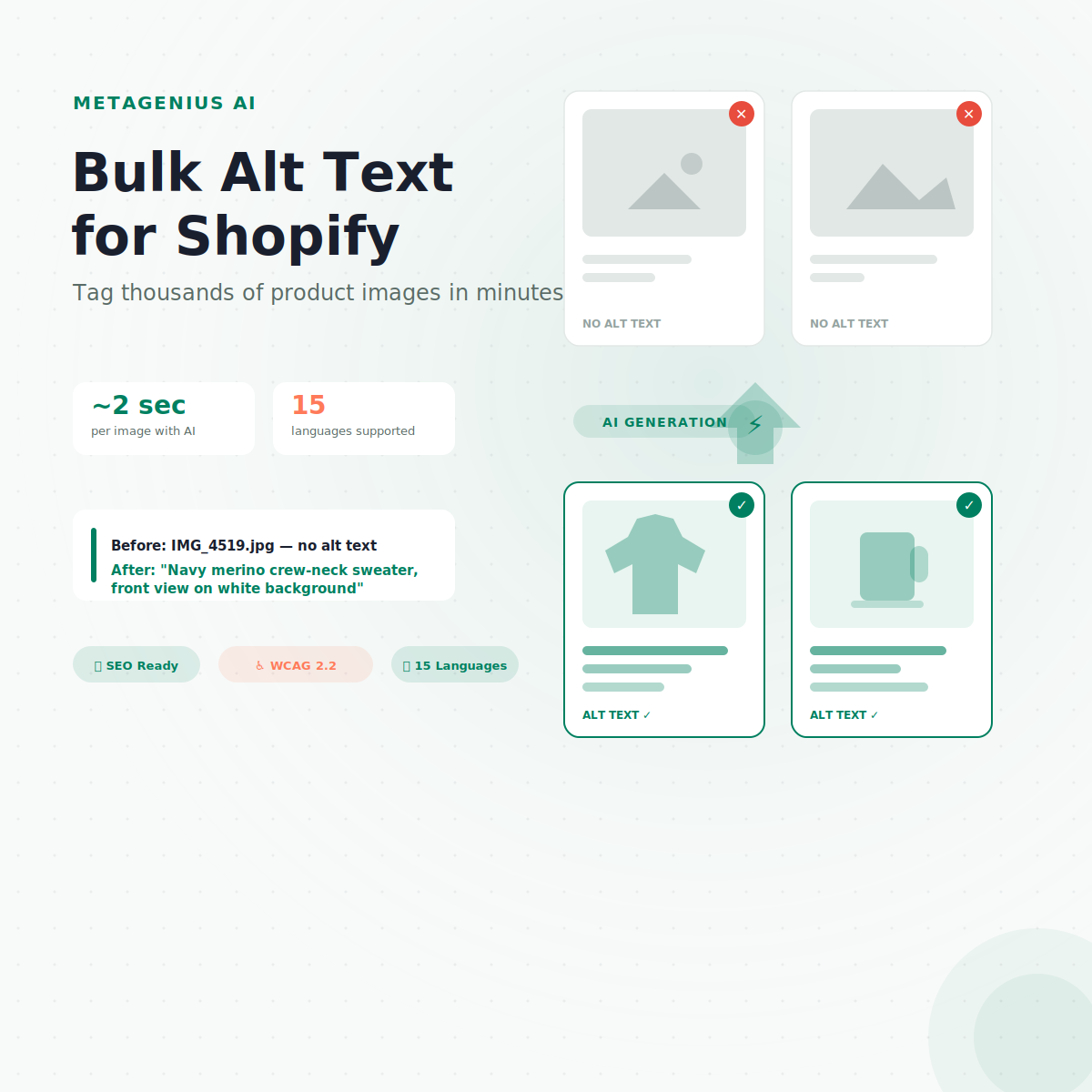
A typical Shopify store with 500 products carries somewhere between 2,000 and 4,000 product images. Most of those images have no alt text — or worse, filenames like IMG_4519.jpg serving as the only signal Google gets. That means thousands of potential Google Images impressions evaporating every month, plus a growing legal exposure now that the European Accessibility Act became enforceable in June 2025.
Adding alt text to one image at a time inside Shopify's product editor takes about 45 seconds. Multiply that by 3,000 images and you're looking at 37+ hours of copy-paste work. Nobody has that kind of time — especially not a store doing $50K–$250K/month where every hour spent on data entry is an hour not spent on growth.
This guide covers every method to bulk add alt text to Shopify images — from Shopify's own tools to CSV workflows to AI-powered generation. By the end, you'll know exactly which approach fits your catalog size, your team, and your budget.
Why Bulk Alt Text Matters Right Now
Alt text used to be a "nice-to-have" checkbox on an SEO audit. In 2026, three forces have made it urgent.
Google Images is a real traffic channel
Roughly 22.6% of Google SERPs include image pack results. For e-commerce queries — "navy slim-fit blazer," "ceramic pour-over set," "gold hoop earrings" — image results often appear above the fold. Alt text is the single strongest signal Google uses to decide which images to show for those queries. As John Mueller has stated: Google uses alt text along with computer vision and page context to understand what an image is about.
Here's the counterintuitive part that most guides miss: alt text doesn't directly boost your page rankings in traditional web search. It's an image ranking factor, not a page ranking factor. The bigger win is the traffic you get from Google Images itself — which, for product catalogs, converts at surprisingly high rates because the intent is already commercial.
Accessibility law is tightening
The WCAG 2.2 Success Criterion 1.1.1 requires every meaningful image to have descriptive alt text. That's not just a guideline anymore. The EU's European Accessibility Act (EAA), enforceable since June 28, 2025, applies WCAG 2.1 Level AA as a legal baseline for e-commerce sites selling to EU customers. Non-compliance penalties run up to €500,000 depending on member state. In the US, ADA lawsuits targeting e-commerce sites have accelerated — and missing alt text is one of the easiest violations for an automated scan to detect.
If you sell to UK, EU, or US customers (which most readers of this blog do), this is no longer optional.
Google's March 2025 Core Update favors first-party SEO signals
Lily Ray's analysis of the March 2025 Core Update found that sites with strong first-party SEO infrastructure — structured data, clean meta tags, complete alt text — recovered faster and ranked more stably than sites relying on third-party tools alone. Alt text is one of the simplest first-party signals you can ship. And bulk-shipping it across your entire catalog is the highest-leverage way to do it.
4 Methods to Bulk Add Alt Text in Shopify
There's no single "best" method — it depends on your catalog size, technical comfort, and how much time you want to spend. Here's the honest comparison:
| Method | Best for | Speed (500 products) | Quality control |
|---|---|---|---|
| Shopify bulk editor | Under 200 products | 4–6 hours | Manual review per image |
| CSV export/import | 200–2,000 products (technical team) | 8–12 hours | Spreadsheet formulas help |
| AI generation (MetaGenius AI) | Any catalog size | ~15 minutes | AI + human review via preview |
| Shopify Admin API | Developer-led, 5,000+ products | Depends on script | Requires QA testing |
Method 1: Shopify Admin Bulk Editor
Shopify's built-in bulk editor lets you edit alt text for multiple products at once — without leaving your admin. It's the easiest starting point if your catalog is small.
How to do it
- Go to Products in your Shopify admin.
- Select the products you want to edit (checkboxes on the left).
- Click Edit products to open the bulk editor.
- Add the Image alt text column if it's not visible.
- Type or paste alt text for each image in the spreadsheet view.
- Click Save.
Where it falls short
The bulk editor loads about 50 products at a time. For a 500-product store, that's 10 batches minimum — and you're still hand-typing every description. It also doesn't support formula-based templating, so you can't auto-fill alt text from product titles the way you can in a spreadsheet.
For stores under 100–200 products with a patient team, it works. For anything larger, you need a scalable method.
Method 2: CSV Export/Import
Shopify's product CSV includes an Image Alt Text column. You can export your catalog, fill in alt text in a spreadsheet, and re-import to update everything at once.
Step-by-step
- Go to Products → Export. Choose "All products" and "Plain CSV file."
- Open the CSV in Google Sheets or Excel. Find the Image Alt Text column (usually column AG or nearby, depending on your export configuration).
- Write alt text for each row. Use spreadsheet formulas to speed this up — for example, concatenating product title + variant + "on white background" gives you a decent baseline.
- Save as CSV. Go back to Products → Import. Upload the file and check "Overwrite existing products".
- Shopify updates the alt text field for every matching image.
Tips from experience
- Work in batches of 500–1,000 products to avoid timeout issues during import.
- Back up first. Export a clean copy before you start editing — one bad import can overwrite data you didn't intend to change.
- Formula-based alt text is a floor, not a ceiling. "Red cotton t-shirt — product photo" is better than empty, but worse than "Men's red organic cotton crew-neck t-shirt on white background, front view." Human review after formula generation catches the worst offenders.
The CSV method works for technical teams comfortable with spreadsheets. The bottleneck is writing quality alt text at scale — formulas get you 60% of the way; the remaining 40% still requires human effort or AI.
Method 3: AI Alt Text Generation with MetaGenius AI
Quick disclosure: we make MetaGenius AI. We think it's the fastest way to bulk-tag a Shopify catalog with quality alt text. Here's the honest version of how it works — and where it falls short.
How it works
MetaGenius AI reads your product's title, description, variant data, and image context, then generates descriptive alt text for each image. You review the output, tweak anything that needs adjusting, and publish. The entire flow happens inside your Shopify admin — no CSV wrangling, no external tools.
- Bulk generation: Select products (or your entire catalog) and generate alt text in one click. A 500-product catalog takes roughly 15 minutes.
- Auto-sync: New products get alt text automatically via Shopify webhooks — no manual step for new inventory.
- Custom AI instructions: Tell the AI your brand's vocabulary, what to include (material, color, use case), and what to skip (competitor names, prices). The output matches your tone.
- 15 languages: Native-language generation, not translations. If you sell in Germany, the alt text is written in German by default.
Where it falls short
AI-generated alt text is good, not perfect. It occasionally misreads product context — confusing a "gold-plated ring" for a "gold ring," for example. That's why MetaGenius shows you every generated result before publishing, so you review and edit before anything goes live. The fix rate in practice is about 5–10% of outputs needing a tweak. That's still dramatically faster than writing 3,000 descriptions from scratch.
Your catalog deserves better than empty alt fields.
MetaGenius AI writes SEO-ready alt text for every product image in bulk — in seconds. Free plan includes 10 generations. No credit card required.
Install Free on Shopify →Method 4: Shopify Admin API (Developer Route)
For stores with 5,000+ products and a development team, the Shopify Admin API gives you full programmatic control over product images and their alt text.
How it works
You query the ProductImage resource via GraphQL or REST, iterate over images with empty alt fields, generate or assign alt text programmatically, and push updates back via the API. Most teams pair this with a templating function — pulling from product title, variant name, and image position to construct alt text dynamically.
When it makes sense
- Your catalog exceeds 5,000 products and you already have a developer on payroll.
- You need custom logic — for example, different alt text patterns for lifestyle shots vs. product-on-white shots.
- You want to integrate alt text generation into your product publishing pipeline, triggered by CI/CD or a custom webhook.
When it doesn't
Building and maintaining a custom script takes 10–40 hours of developer time, depending on complexity. For stores under 5,000 products, the ROI rarely justifies the engineering cost when a $5–$15/month app handles the same workflow out of the box.
What Good Product Alt Text Looks Like
Google's Image SEO best practices are clear: alt text should describe the image's content in a way that's useful to someone who can't see it. For product images, that translates to a few consistent patterns.
The formula that works
[Product name] + [key variant details] + [context/angle]
- Good: "Women's navy merino wool crew-neck sweater, front view on white background"
- Good: "Handmade ceramic pour-over coffee dripper in matte black, close-up of filter holes"
- Bad: "sweater" (too vague — Google learns nothing)
- Bad: "best navy sweater for women buy now free shipping wool merino crew neck 2026" (keyword stuffing — hurts more than it helps)
Rules that matter
- Keep it under 125 characters. Screen readers cut off longer text awkwardly. Google's systems process the full string, but the usability sweet spot is 80–125 characters.
- Skip "image of" and "photo of." Screen readers already announce it as an image. Starting with "Image of red dress" is redundant.
- Include the brand or model name when it adds search value. "Yeti Rambler 26oz tumbler in Canopy Green" captures a branded search query. "Green tumbler" doesn't.
- Don't repeat the product title verbatim. The
<h1>already carries the product title for page SEO. Alt text should complement it with visual details the title doesn't include.
Edge Cases Most Guides Skip
Generic alt text advice covers the 80% case. Here's the 20% that trips up real stores.
Decorative images: use empty alt
If an image is purely decorative — a background pattern, a section divider, a lifestyle banner that doesn't show a specific product — use alt="" (empty string). This tells screen readers to skip it entirely. Adding descriptive alt text to a decorative image clutters the experience for visually impaired users and sends a confusing signal to Google.
WebAIM's alt text guide is the best reference here. The rule: if removing the image wouldn't change the information on the page, it's decorative.
Variant images: differentiate each one
A product with 6 color variants and 4 angles per variant = 24 images. Each one needs unique alt text. The most common mistake is copying the same alt text across all variant images — "Blue cotton t-shirt" for every angle of every color. Instead, specify the variant and angle: "Men's blue organic cotton t-shirt, side view" vs. "Men's red organic cotton t-shirt, back view."
This is where manual approaches break down fastest. Writing 24 unique descriptions per product, for hundreds of products, is exactly the use case where AI generation pays for itself in the first hour.
Multi-language stores: alt text needs translation too
If you use Shopify Markets to serve customers in multiple languages, your alt text should match each market's language. Google indexes the alt text in the language of the page — English alt text on a German product page sends mixed signals to Googlebot. MetaGenius AI generates alt text natively in 15 languages, so each market gets alt text that reads naturally in its own language rather than running through a translation layer.
Images with embedded text
Size charts, infographics, and promotional banners with text overlaid need alt text that includes the text content of the image. A size chart image with alt="size chart" is useless to a screen reader user. Instead: "Size chart showing bust, waist, and hip measurements in inches for sizes XS through XXL." This is also a WCAG 2.2 requirement, not a suggestion.
Frequently Asked Questions
alt="") to mark it as decorative.<img> tag's alt attribute via the Liquid filter {{ image.alt | default: product.title }}, but this varies by theme and produces generic results. It's not a substitute for descriptive, image-specific alt text.Stop leaving alt text fields empty. Start ranking in Google Images.
MetaGenius AI writes SEO- and accessibility-ready alt text for every product image in your Shopify catalog — in bulk, in seconds. Install the app on Shopify. Click "Generate" on your product list. Review the output. That's three steps to a fully-tagged catalog.
Install Free on the Shopify App Store →